This article is for administrators.
The job record must have Paycor Smart Sourcing turned on with an assigned Smart Sourcing Manager.
Smart Sourcing reviews your job description and finds candidates who match it.
Calibration helps you fine-tune the results. You review sample candidate profiles and tell the system who is a good fit and why. This helps the system learn and improve your matches.
Before you begin
-
The job record must have Paycor Smart Sourcing enabled with an assigned Smart Sourcing Manager.

-
If you are a Smart Sourcing Manager on any job records, make sure your notification settings include Notify me of Paycor Smart Sourcing calibration statuses. This ensures that you’ll be prompted when Smart Sourcing is ready for your input.

-
Your first job setup may take time.
- If you do not get a notification within 24 hours, contact RecruitingSuppport@paycor.com.
Calibrate a job profile
This is where you review candidate profiles and refine the criteria that make for a great candidate for your position. It helps the system learn what you are looking for in a candidate.
- Go to People > Hiring > Applicant Tracking to open the Recruiting platform.
-
From the job record, select Calibrate.

-
Continue with your Paycor login.

-
Smart Sourcing opens and analyzes your job description.

- Smart Sourcing presents several sample candidate profiles.
-
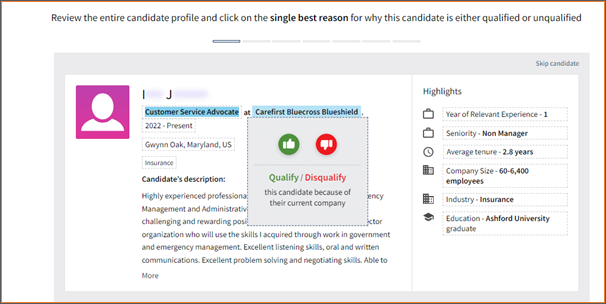
Review each candidate profile and either:

-
Select Qualify (thumbs up) if the candidate is a good match.

-
Select Disqualify (thumbs down) if the candidate is not a good match.

-
Select one or more attributes that support your choice. The categories for these attributes are listed later in the article.
-
Attributes may be highlighted, in bold font, or have a box around them.

-
Select the attribute to indicate what makes that detail a strong qualifier or disqualifier. You may have a pop-up asking for more details.

-
You can choose multiple relevant insights for the same candidate profile. They’ll create a list.

-
Attributes may be highlighted, in bold font, or have a box around them.
-
Select Next Candidate to continue. The system refines the search using all selected insights. A new candidate profile displays.

- Repeat this process to rate at least seven profiles. Managers must rate at least seven profiles.
How attribute qualifications work
When you review candidates, you can select attributes that qualify or disqualify a candidate and explain your decision. You can choose more than one insight for each candidate.
These insights help Smart Sourcing improve future matches.
Qualify and disqualify criteria
| Job Title |
|
|---|---|
| Current Company |
|
| Job Tenure |
|
| Location |
|
| Industry |
|
| Matched Skills |
|
| Years of Experience |
|
| Education |
|
| Managerial Experience |
|
| Seniority |
|



After you have rated seven candidates, you are asked if you want to rate more candidates or finish the calibration. After the calibration steps are complete, you are asked to select a sourcing method. Refer to Select a Sourcing Method in Smart Sourcing.

Tips for best results
- Rate at least seven candidate profiles.
- Use multiple insights for each decision.
- Be consistent when reviewing candidates.
- Adjust the criteria based on the results you receive.
Updated: August 17th, 2026 12486 views 1 likes
*This content is for educational purposes only, is not intended to provide specific legal advice, and should not be used as a substitute for the legal advice of a qualified attorney or other professional. The information may not reflect the most current legal developments, may be changed without notice and is not guaranteed to be complete, correct, or up-to-date.