This article is for administrators.
Review and start an offer approval
- Go to People > Hiring > Applicant Tracking.
- Select Requests.

- Select the Offer Approval you want to review.
- Review the offer details and decide whether to start the approval process or deny the request.
- If the Approve This Offer button is green, it means go. If it is red, it means no.

- If the Approve This Offer button is green, it means go. If it is red, it means no.
- Choose a predefined approval process or create a Custom one. If you have the authority to approve this offer without input from other stakeholders, select Skip Approval.

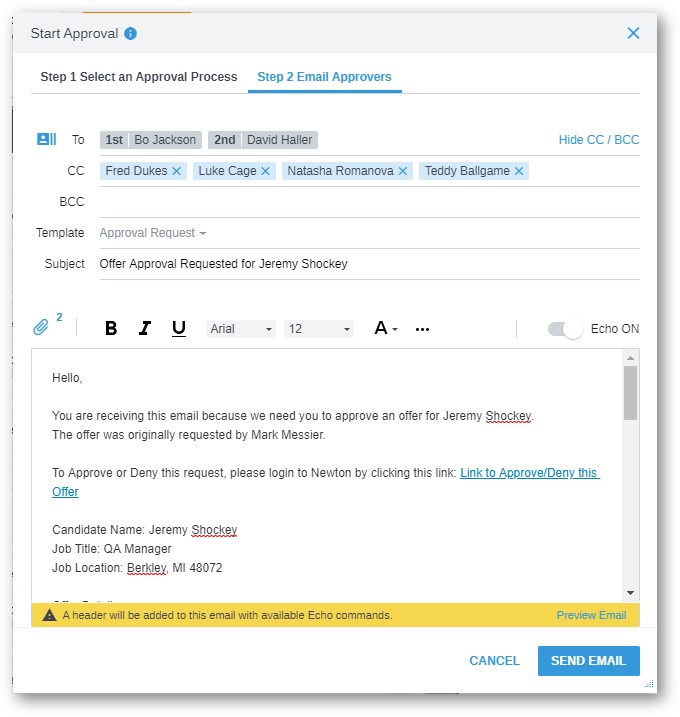
- Review the approval request email and select Submit. Recruiting alerts your approvers based on your approval process and notifies you when the process is finished.
Check the status of an outstanding offer approval
- Go to People > Hiring > Applicant Tracking.
- Select the Approvals tab to check the process and status of any of your Offer Approvals.

- The Approvals tab shows new approval requests, approvals in process (awaiting responses from approvers), and completed approvals that you must activate.
- If needed, administrators or staffing users can approve on behalf of an approver by selecting the approver’s name on the Approval bar.

Next step after an offer is approved
After an offer is approved, extend the offer to the candidate using the Offer Letters feature. For more information, refer to Create and manage offer letters.
Offer approval process video
Updated: April 23rd, 2026 7782 views 0 likes
*This content is for educational purposes only, is not intended to provide specific legal advice, and should not be used as a substitute for the legal advice of a qualified attorney or other professional. The information may not reflect the most current legal developments, may be changed without notice and is not guaranteed to be complete, correct, or up-to-date.