This article is for administrators.
Overview
You can remove a job from your Recruiting Dashboard. This is usually for two reasons:
- Closed: You did not hire anyone for the job.
- Filled: You hired someone for the job.
To remove a position from your Home Dashboard and notify candidates after it has been closed or filled, you must follow all 3 steps in this article.
If you only want to remove the position from your website, refer to How to Stop Accepting Resumes for an Active Job (Pause a Job).
Step 1. Change the job status to Closed or Filled
- Go to People > Hiring > Applicant Tracking. The screen opens to display the Active Jobs in your company.
- Find the job you filled or want to close. At the top-left, select the info icon (i). A popup opens with the job title.
- Select the Job Status field, choose Closed or Filled, and then select Save. The popup closes.
- Go to Step 2.
Step 2. Bulk inactivate candidates
- Go to People > Hiring > Applicant Tracking. The screen opens and shows all Active Jobs in your company.
- Select a job that is Closed or Filled.
- When you change a job to Closed or Filled, a banner opens at the top of the job details window under the Candidate Breakdown tab.
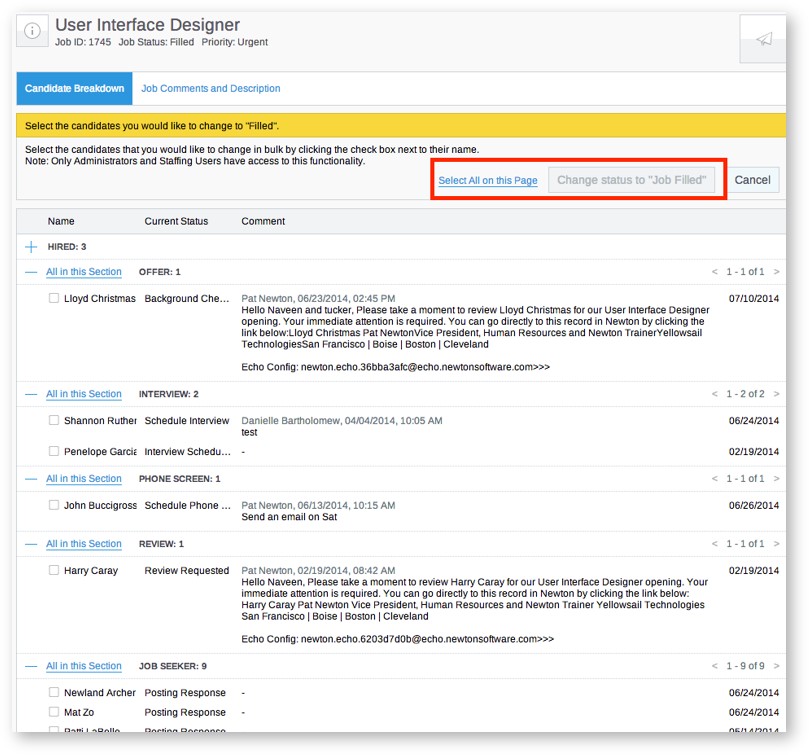
- Select the clicking here link in the banner. A screen opens to Select the candidates you would like to change to Filled (or Closed).

- Mark the checkboxes next to specific candidates, or choose Select All on this Page for all candidates.
- After you select them, the candidates display in the Pending Thank You section of the Home Dashboard.
- Go to Step 3.
Step 3. Send bulk thank you letters
- Go to People > Hiring > Applicant Tracking. The screen opens and shows all Active Jobs in your company.
- At the top-right of the Active Jobs screen, select Pending Thank You Letters (XX of XX). The candidates you inactivated are listed.
- Mark the checkboxes next to the candidates who should get a Thank You letter.
- Select Send.

Close and fill a position: Expert session video
Updated: February 23rd, 2026 1244 views 0 likes
*This content is for educational purposes only, is not intended to provide specific legal advice, and should not be used as a substitute for the legal advice of a qualified attorney or other professional. The information may not reflect the most current legal developments, may be changed without notice and is not guaranteed to be complete, correct, or up-to-date.